Deploying a Local Ghidra Server for Your Malware Analysis Lab, (Thu, Oct 29th)
Building your malware analysis lab is a key point before playing with malware. Today, thanks to virtualization, it's convenient to play with snapshots in your lab.
Start a new investigation from a clean snapshot and take some more when you reached a critical step. But, if you need to revert to a previous snapshot, all changes applied to the VM are... lost! Therefore, it's important to store important data outside the VM.
If you do malware analysis with Ghidra[1], your work lives in "projects". A project is a .gpr file and a .rep directory sitting on the disk of your analysis machine. Every renamed function, comment, structure and bookmark you added is stored there. And, as said before, hours of work can be lost if your VM has issues or you restart to a clean snapshot.
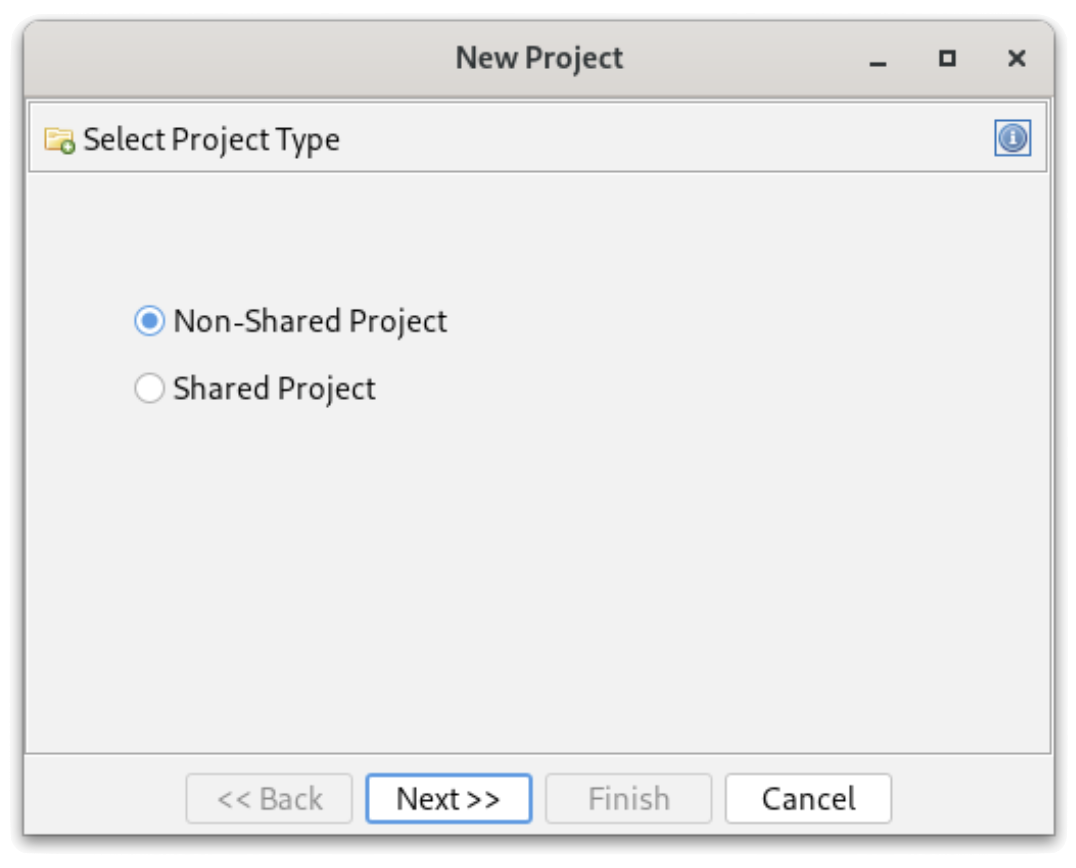
When you create a new project in Ghidra, it always asks you if you want a "shared" or "non-shared" project.
Ghidra Server
Ghidra ships with a component that many people ignore: Ghidra Server. It is included in the standard distribution (no extra download, no licence) and turns your local projects into "shared projects" backed by a central repository.
Here are some reasons why it's useful to deploy one in your lab:
- Persistence: revert your VMs as often as you want; the annotated programs are safe on the server.
- Versioning: each check-in creates a new version of the program with a comment. You can go back to a previous state of your analysis or compare versions (like a git repot)
- Multiple clients: start an analysis on one box and continue it on another one (another VM, your laptop, a colleague's workstation).
- Collaboration: several analysts can work on the same samples, with read-only, read/write or admin permissions per repository.
- Confidentiality: everything stays in your lab. No sample or customer-related binary is pushed to a third-party service. This matters when you handle files coming from incident response engagements.
Requirements
From a requirements perspective, the server is lightweight. I'm running Ghidra 12.1.4 in an Ubuntu container on my Proxmox host, but any small Linux VM will do. Recommended specs:
- Small Linux VM or container, kept separate from your analysis VMs
- 2 x CPU, 4GB (enough for small teams, personal use)
- 8G of storage (may depends on your volume of samples!)
- JDK 21 or newer
To avoid incompatibility issues, use the same version of Ghidra between the server and clients. Keep versions aligned!
Important remarks about networking:
- Ports TCP/13100 & TCP/13101 must be reachable from clients
- Clients must be able to resolve the hostname announced by the server
Don't forget that this server will host malicious pieces of code! Treat it as hosting live malware and keep it in your malware analysis lab network! Nothing is executed there, but the repositories contain the raw bytes of every sample you imported. Sounds legit but never expose it to the Internet.
Installation
Ghidra Server is a Java RMI service. The basic setup is pretty easy. There is no official container image, but the distribution contains everything needed to run the server as a regular service.
First, create a dedicated account, unpack Ghidra and create the repositories directory:
# apt install openjdk-25-jre-headless unzip
# useradd -r -m -d /opt/ghidra -s /usr/sbin/nologin ghidra
# cd /opt && unzip ghidra_12.1.4_PUBLIC_*.zip
# ln -s ghidra_12.1.4_PUBLIC ghidra-current
# mkdir -p /opt/ghidra-repos && chown -R ghidra: /opt/ghidra-repos
The configuration is in server/server.conf. Set the repositories directory, the account used to run the JVM, and the server parameters:
ghidra.repositories.dir=/opt/ghidra-repos
wrapper.app.account=ghidra
# Authentication: local Ghidra passwords, expire after 90 days
wrapper.app.parameter.1=-a0
wrapper.app.parameter.2=-e90
# Hostname announced to clients
wrapper.app.parameter.3=-ip
wrapper.app.parameter.4=ghidra.lab.local
# Repositories directory (must be the last parameter)
wrapper.app.parameter.5=${ghidra.repositories.dir}
The main authentication modes are -a0 (passwords managed by the server), -a2 (PKI with client certificates) and -a4 (JAAS, to plug into LDAP or Active Directory). Leave anonymous access disabled. I'm using the local authentication scheme (-a0).
The -ip parameter is important: RMI returns this name to the clients, which reconnect to it on ports 13101 and 13102. If clients can't resolve it, they reach the server on the first port and then fail. If you want to bind the service to a single interface (your VPN interface, for example), add -i.
Install the service, check it and create the users:
# /opt/ghidra-current/server/svrInstall
# systemctl status ghidraSvr
# ss -tlnp | grep -E '1310[0-2]'
# cd /opt/ghidra-current/server
# ./svrAdmin -add xavier
# ./svrAdmin -list -users
New users get the initial password changeme (yes, unsecure...) and must change it at first login. The svrAdmin commands are queued and processed by the running server within a few seconds.
Using Shared Projects
Now, you are ready to use your brand new server! Repositories are created from the Ghidra client:
- File > New Project... and select "Shared Project".
- Enter the server name (the one used with -ip) and port 13100, then log in.
- Click "Create Repository" and give it a name (mine is "MalwareLab"). The user who creates it becomes its administrator.
- Choose a local directory and a project name. This is your local working copy.
Access for other analysts is managed from the client (Project > Edit Access List) or from the server, once the repository exists:
# ./svrAdmin -grant john +w MalwareLab
# +r read-only, +w read/write, +a admin
A shared project still creates a .gpr file and a .rep directory locally! That's expected: they contain the connection settings, a cache and your checked-out copies.
Importing a binary does not send it to the server. It remains a private file until you right-click it and select "Add to Version Control...". From then on, the workflow is similar to any source control system:
- Check Out a program to work on it (exclusively or not).
- Check In your changes with a comment; each check-in creates a new version.
- Versioned files display a version icon in the project tree; files without it are still local only.
- Project > Project Info shows the server and repository you are connected to.
Restoring After a Snapshot Revert
How to restore your project if your analysis VM has been reverted to a clean snapshot and the local project is gone? To get everything back, create a new Shared Project, connect to the server and select your existing repository (don't create a new one). The project tree is populated with all checked-in programs.
If a file is still checked out by the old instance of the VM, right-click it, select View Checkouts and terminate the stale entry.
What the server can't give back:
- Private files never added to version control.
- Changes made after the last check-in.
- Your client settings (tool layouts, key bindings, script directories, extensions), stored in
~/.config/ghidra/. - Your client certificate and key if you use PKI authentication. Back them up separately!
Before deploying your own server, you can have a look at the ghidra-server project[2] that offers a free server for the RE community. But don't forget that, like any "cloud" service, you'll share your data!
Happy reversing!
[1] https://github.com/nationalsecurityagency/ghidra
[2] https://ghidra-server.org
Xavier Mertens (@xme)
Senior ISC Handler | SANS Principal Instructor | Freelance Consultant
Xameco | PGP Key
Comments
Comments
No comments yet. Start the discussion.