Turtle Beach Command Series KB7 Review: A keyboard with a touchscreen and a lot of potential
Design and Construction of the KB7
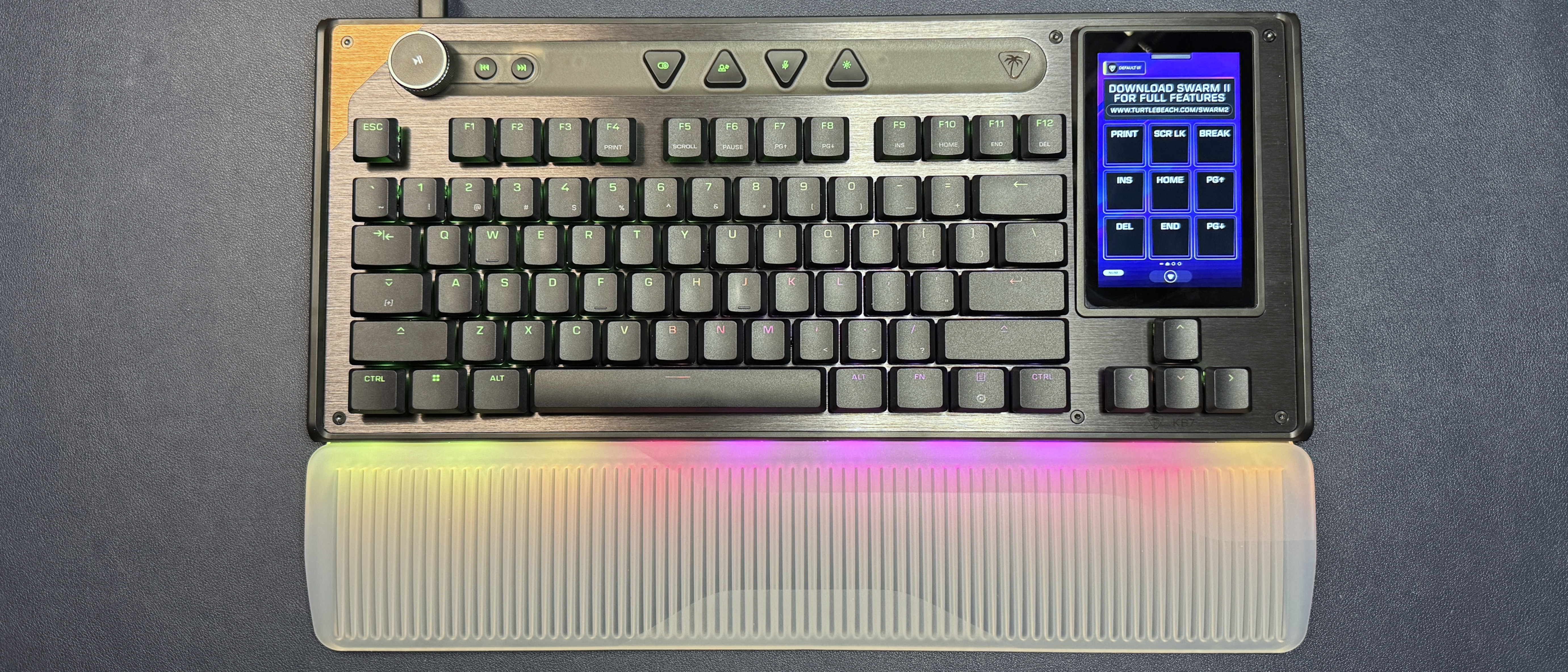
The KB7 has a TKL layout - sort of. It has a full function row and arrow keys, but it has a 4.3-inch touchscreen where the navigation cluster would normally be. It's a slim, well-built keyboard with a brushed aluminum top plate and a plastic chassis.
Size-wise, it's pretty standard for a TKL, measuring 15.71 inches (399mm) wide by 6.85 inches (174mm) deep, and it's 1.22 inches (31mm) thick at its thickest point (including keycaps/knobs). It's not particularly heavy - it weighs 1.89 pounds (858g) without the wrist rest, which weighs an additional 9.24 ounces (262g). That's nowhere near as hefty as my current favorite TKL - the 5.25-pound (2,380g) Wobkey Crush 80 Reboot Pro - and it's even a little lighter than Logitech's budget-friendly low-profile wireless G515 TKL, which weighs 1.94 pounds (880g). So, yeah, if you're looking for a keyboard with weight... this isn't it.
The KB7 has a nice spacious setup for a TKL - there's plenty of room above the function row for extra controls, including a dedicated volume knob, two media keys, and four triangular shortcut keys. The keys come with presets programmed in - from left to right, there's a game mode button, a profile switch button, a mic mute button, and a lighting toggle button - but all of these keys, including the clickable volume wheel and the two dedicated media keys, can be remapped in Turtle Beach's Swarm II software.
The volume knob is notched and features metal textured edges for a premium feel, but the rest of these extra media/shortcut keys are mediocre at best. Pressing them gives cheap, plasticky feedback - but at least they're easy enough to press thanks to all the extra space around them.
The KB7's standout feature is its 4.3-inch full-color "Command Center" touchscreen, which is located on the left side of the board where you'd normally find the navigation cluster. The touchscreen comes with the navigation cluster programmed in, of course - a full 3 x 3 grid, as well as a link at the top that directs you to download the Swarm II software for full functionality. Once you download Swarm II, you can replace this link with three additional touch-buttons, for a full 12-button grid - similar to the physical LCD key setup of the Corsair Galleon 100 SD.
Of course, the KB7's touchscreen doesn't have the extra knobs that the Galleon 100 SD has, but it is a touchscreen, so you can swipe left and right to switch "pages" of button layouts (most of my dial usage on the Galleon 100 SD is, admittedly, moving between layouts). The touchscreen also features a few non-remappable "buttons," including a home button at the bottom, a profile switch button in the top left, and a settings menu at the top, which drops down to let you change settings such as keyboard and touchscreen brightness, set the actuation point, toggle ReacTap and Rapid Trigger, record macros, and remap keys. (There's also yet another button for lighting adjustment, as well as one for profile switching - functions that are extra-redundant, given that the shortcut keys are also pre-mapped with them.)
The KB7 comes with an accompanying silicon wrist rest that's virtually identical to that of the Roccat Vulcan II Max, which is still one of the prettiest keyboards we've tested to date. The wrist rest is made of soft, smooth translucent silicon with a grooved design that showcases the keyboard's bright, customizable RGB lighting when it's hooked into the bottom of the board. It isn't powered, like the wrist rest that comes with Razer's BlackWidow V4 Pro, it just diffuses the lighting from the board onto the silicon. It's a cool feature that still makes for one of the prettiest keyboard lightshows around. The wrist rest itself isn't particularly plush, but it gives you a nice, gradual slope to the keyboard (which is low-profile, anyway, so you probably don't strictly need it), and it's durable and easy to clean.
Along the top of the keyboard, in the upper left corner, you'll find a USB-C port and a USB-A passthrough port. The passthrough port is nice - and it's also practically necessary, because this keyboard needs a lot of juice. It can connect to your PC through one USB-C port, or it can connect to your PC through two USB-A ports - again, similar to the Roccat Vulcan II Max, which also required two USB-A ports' worth of power to run. I guess that's the price of pretty lighting (and 4.3-inch touchscreens). But at least you get one USB-A port back as a passthrough port, I guess.
The back of the keyboard has two sets of flip-out feet, which raise the typing angle from basically flat to 5 and 7 degrees, respectively. It also features rails on both sides for connecting the KP7 modular keypad - just slide the keypad onto the rails, and you basically have a full-size keyboard (now with a touchscreen in the middle). It's nice that the rails are on both sides, even though I suspect that left-handed numberpad users make up a minuscule percentage of the population.
In the box, the KB7 comes with a few accessories: the silicon wristrest, a 6-foot (1.8m) braided USB-C to USB-C cable, a USB-C to dual-USB-A adapter, a keycap puller, and four shiny, textured keycaps (designed for the W/A/S/D keys, but they can be used on any standard-sized key).
Specs
| Spec | Value |
|---|---|
| Size | TKL (sort of) |
| Number of keys | 78 |
| Switches | Titan Low-Profile HE switches |
| Backlighting | Yes |
| Onboard Storage | Yes (5 profiles / 32MB) |
| Dedicated Media Keys | Yes (volume knob, fast-forward, rewind) |
| Game Mode | Yes |
| Additional Ports | 0 |
| Connectivity | Wired (USB-C) |
| Cable | 6ft. / 1.8m USB-C to USB-C (comes with USB-C to USB-A x 2 adapter) |
| Keycaps | Double-shot PBT |
| Construction | Plastic chassis |
| Software | Swarm II |
| Dimensions (LxWxH) | 15.71 x 6.85 x 1.22 inches / 399 x 174 x 31 mm |
| Weight | 1.89lbs / 858g |
| MSRP / Price at Time of Review | $199.99 |
| Release Date | May 2026 |
Typing and Gaming Experience on the KB7
The KB7 is a TKL (-ish) keyboard with Turtle Beach's in-house Titan low-profile linear magnetic Hall Effect switches. They have an adjustable actuation point (0.1 - 3.2mm) and a lifecycle rating of 100 million keystrokes. They're not hot-swappable. Like other magnetic Hall Effect switches, they support all the trendy gaming features that will probably get you banned, including Rapid Trigger, multi-input, controller mode, and ReacTap (SOCD).
I'll admit that I didn't love the way typing felt on the KB7 initially - the linear magnetic low-profile switches combined with the relatively flat, lightweight double-shot PBT keycaps makes for a much flightier typing experience than I'm used to. It took less than an hour for me to get used to it, however, and all in all it's a pretty solid typing experience considering I don't love linear, low-profile, or magnetic switches. The flat, shine-through keycaps make it easy to move your fingers across the board quickly, and the relatively spacious layout means you won't make too many mistakes once you've gotten used to the feel. The board sounds decent - it's not incredible, or anything, but it gives pretty solid thunky feedback for a mainstream gaming keyboard.
I did have some issues that definitely weren't related to my "just getting used to the feel of the board," however - issues that could probably be remedied with a firmware update and software that worked, but, well... I'm not going to hold my breath. I had several issues while I was typing this review, including ghost inputs, missed inputs, and repeat glitches. All of these issues were quickly resolved, but having to stop the review six times because the keyboard was acting up does not give me great confidence in the board's ability to perform under pressure.
I didn't have any serious issues while I was gaming, but I also don't generally play a lot of fast-paced first-person shooters where latency and input accuracy is wildly important (I play a handful for testing, but that's it). The KB7 does boast a speedy 8,000 Hz polling rate, but that means nothing if you can't get the right keys to actuate.
The touchscreen performance was decent, though I don't know if I'd trust it in a high-pressure situation. While it registered my inputs quickly and accurately, it's still a touchscreen - hardly the kind of input you want to rely on when you're in the middle of a high-stakes battle for your (digital) life. So, while it's useful for general macro-pad type things, it's not something I'd recommend as part of your ultra-competitive gamer arsenal.
Features and Software of the KB7
The KB7 is customizable via Turtle Beach's Swarm II software, which you can download by pressing the link on the touchscreen. You can use Swarm II to program the keyboard (remapping keys, adjusting actuation, recording macros, etc), the touchscreen, and the keyboard's bright, per-key RGB backlighting.
The keyboard settings are pretty standard for a magnetic switch gaming keyboard - you can turn on and adjust Rapid Trigger, multi-input, and ReacTap, and you can fine-tune the actuation point of every single key individually (a thing that nobody does). You can also remap every single key, except the Windows key and the Fn key, to do what you want - on the primary layer you can only swap around the existing alphanumeric punctuation keys (e.g. if you want to set up an unusual keyboard layout), but on the secondary (Fn) and tertiary (Easy Shift) layers you can set keys to do everything from outputting macros to changing system settings and, of course... launching AI? (Apparently this is such a core functionality that it comes standard in the Swarm II software, now - and it's not just CoPilot. There are options for ChatGPT, Gemini, Deep Seek, and Grok, too.)
But the real customization is, or should be, in the touchscreen. It is, however, unfortunately - but not unexpectedly - limited. There are several native widgets you can swap in, but they're not particularly life-changing:
- PC performance monitoring (CPU / GPU / RAM)
- Multimedia controls (which there already exist dedicated keys for)
- Opening apps / websites / files / folders
- Controlling your Turtle Beach devices (by which I mean mouse DPI)
- Executing macros
- A countdown timer
There's also a tab for third-party apps, which currently consist of:
- Discord (though you'll need to set it up via the Discord developer portal as an integration)
- Counter Strike
- Steam (which just opens Steam)
- OBS
- Streamlabs
You can also assign the standard keyboard functions, Windows functions, and shortcuts such as copy / paste, forward / back, launch calculator, etc. It's a start, but it's definitely nowhere near as robust as the functionality you'll find on Elgato's Stream Decks.
Still, this limited functionality is probably workable for most people (after all, you can set up a lot of the functionality you get through third-party apps and plugins by just spending some time creating macros) - if it worked. But the software is, well, let's just say finicky... at best. Setting up the touchscreen seemed to be pretty straightforward, but getting it to stay set up was more of a chore. The software frequently failed in my testing - it would reset, restart, shut down, prompt another six-cycle firmware update (this, at least, I was prepared for - it's pretty standard for Turtle Beach devices to require 14 firmware updates out of the box), etc.
When the software was working, the touchscreen worked as expected and could probably replace my Stream Deck. But this was only about 85% of the time, which would probably be decent if my Stream Deck didn't work 100% of the time. And so the touchscreen has ultimately been relegated to a fun gimmick, at least for now.
The Bottom Line
After my surprising love affair with the Corsair Galleon 100 SD, I really wanted to love the KB7 - after all, it's basically the Corsair Galleon 100 SD, but with the option of an actual 10-key numberpad, which was my only real gripe with the latter. But Corsair owns Elgato, which has been making Stream Decks for almost a decade - and has the software and the third-party plugins to back them up. And at the end of the day, a highly customizable macro pad is actually only as customizable as its software allows for.
Comments
No comments yet. Start the discussion.