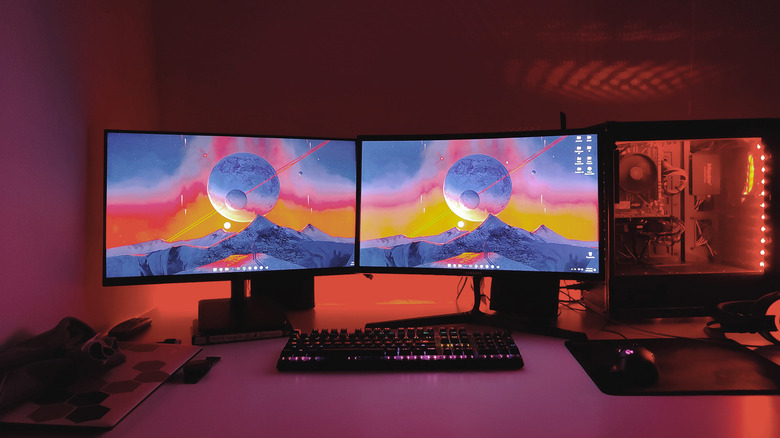
If you're still on a single monitor, this is the best workflow upgrade you can make
If you're still on a single monitor, this is the best workflow upgrade you can make
This simple, and sometimes free, change will enhance both your productivity and entertainment.
If you're still on a single monitor, this is the best workflow upgrade you can make. It will enhance your computing experience in multiple ways. Those who work from home or simply spend a lot of time at their desks will understand how rewarding it feels when you set everything up just right by buying the right peripherals or finding good productivity apps.
Something you can't replicate with software alone, however, is the additional screen real estate that comes with adding another display to your setup. If you've never done it before, setting up a second monitor may seem complicated, but it's as simple as plugging it into an available DisplayPort or HDMI port on your computer. Docking stations come in handy if you're using a laptop with limited port options.
The biggest practical benefit that a dual-monitor setup offers is the ability to have more windows open at the same time. You could have two 24-inch monitors positioned next to each other, or you could stack one above the other if you're running out of horizontal space on your desk. There's nothing stopping you from stacking bigger 27- or 32-inch monitors, but it's recommended you find the optimal viewing distance first.
Some workflows, like programming or writing, can also benefit from having one monitor positioned vertically. You can always switch orientations within the display settings on your computer.
Something you do need to keep in mind with a dual-monitor setup is how well the displays match. Ideally, you'd pick up the same model to make sure the size, resolution, refresh rates, and color balance all line up as closely as possible.
Laptop users already have the perfect second screen
Just when I thought I had found the perfect desk setup with dual monitors, I relocated and had to rebuild my workspace from scratch. A single 27-inch monitor was good enough for my workflow, and adding another external display would've been overkill, so I started using my laptop as a second screen instead of docking it away with its lid shut.
Your external monitor is likely much larger than your laptop's screen, so finding the right arrangement can be a bit tricky. There are laptop stands that elevate your machine to roughly the same height as your monitor, but if you're seated at the optimal viewing distance from a larger 24- or 27-inch monitor, you likely will have a hard time seeing everything on your laptop's smaller display.
What I found worked for me was placing my laptop directly underneath the monitor instead. Not only does this allow you to use the laptop's built-in keyboard and trackpad, but it also solves the problem of having to buy a separate webcam for video calls.
You do need to get used to differences in size and possibly even resolution between the two displays. If all you're using your laptop's screen for is keeping secondary apps like Spotify, Slack, or YouTube, these discrepancies aren't much of a bother. Plus, if your laptop supports charging and display output over USB-C, you can power the entire setup using a single cable and a docking station.
Sometimes a massive single monitor is the right answer
A dual-screen setup works beautifully if you regularly multitask, but it might not be a necessity for everyone. Two or more monitors on the same desk, attached to the same laptop or computer, also introduce cable clutter, require additional power outlets, and take up considerably more space.
This is where single monitor setups still shine. If you're going with one, however, you might as well pick up a larger display. After having experimented with a few dual-monitor setups, I eventually went back to a single 32-inch 1440p curved display. Yes, it's massive, and yes, it takes up more than half of my desk, but it gives me enough room to have multiple windows open without having to deal with the complexity of owning a second monitor.
In hindsight, I should have really gone with a 4K panel, and if you're eyeing anything larger than 27 inches, I'd suggest you step up to 4K, too.
Everything else about owning a huge monitor is a perk. You don't need any fancy third-party window management apps just to stop your apps from forgetting where you left them every time. There's also the added aesthetic benefit of not having a noticeable bezel right in the middle of your workspace. I spend my leisure time playing games, and there are few display experiences that can provide immersion as well as a large curved monitor can.
A life-changing tip I can offer is picking up a monitor arm. They provide far more flexibility and let you pick the right height and tilt settings for your display, which the built-in stands of gaming monitors don't always offer.
Comments
No comments yet. Start the discussion.