Zero-Shot Local Document Parsing with Gemma 4: Treating PDFs as Images
Introduction
Run pdfplumber on a scanned invoice, and you get nothing. Run it on a multi-column research paper, and you get a stream of text that has lost every spatial relationship the layout encoded. Run it on a filled PDF form, and you get the field labels concatenated with the values in reading order, with no way to tell which belongs to which.
Text-extraction tools have one assumption baked in: the PDF has a selectable text layer. The moment that assumption fails - scanned documents, image-only PDFs, complex form layouts, anything with merged table cells - the tools fail silently. You get empty output or garbled text, and the failure mode gives you no signal about what went wrong.
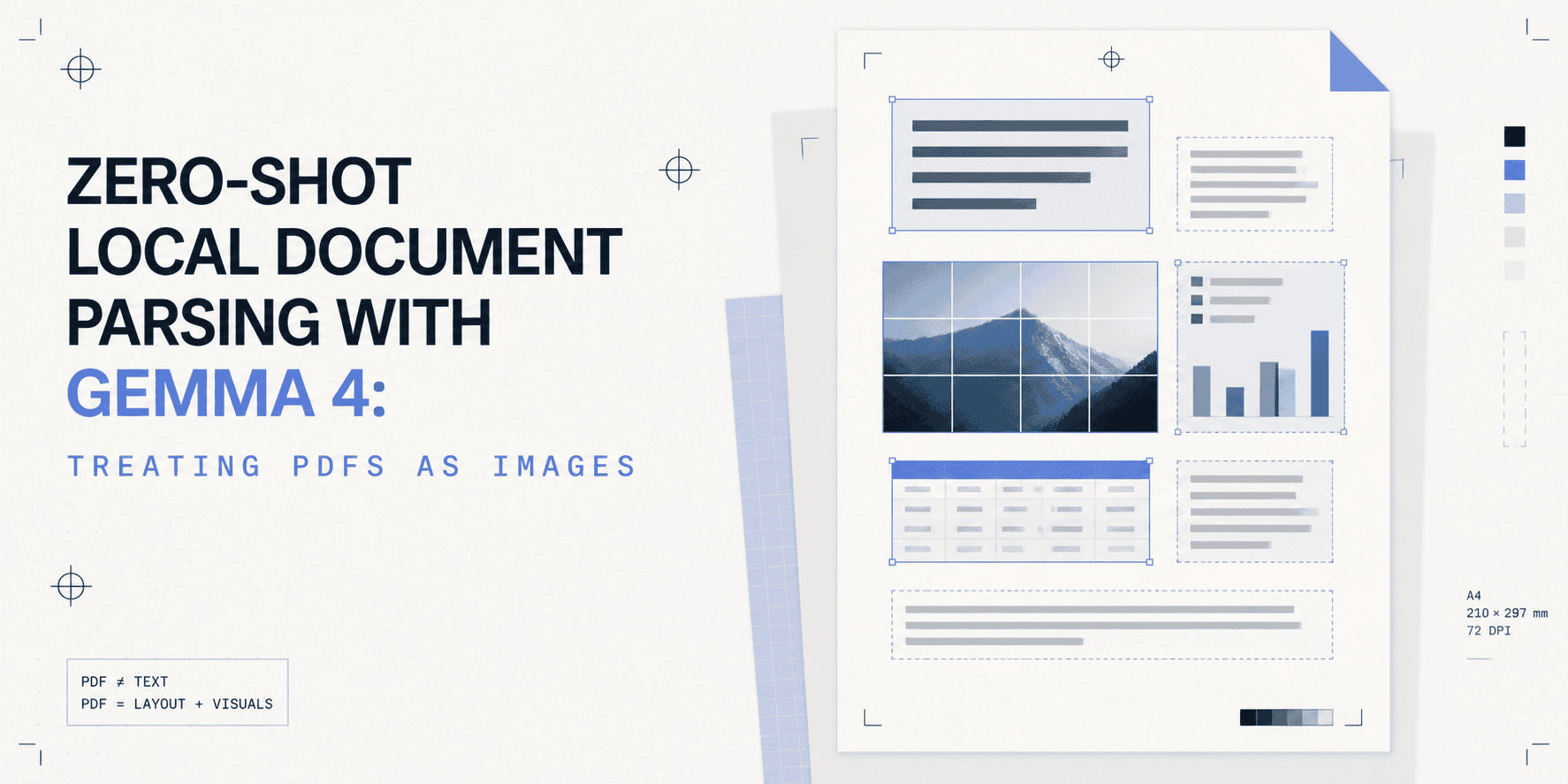
The image approach sidesteps this entirely. Render each PDF page to a high-resolution image. Feed that image to a vision-language model. Ask it what you need in plain language. No optical character recognition (OCR) pipeline, no layout parser, no template matching per document type. The model reads the page the way a human reads a printed page.
Gemma 4, released by Google DeepMind on April 2, 2026, with a full Apache 2.0 license, lists Document/PDF parsing as an explicit capability alongside OCR, chart comprehension, handwriting recognition, and screen understanding. It runs entirely locally. No API key, no cloud call, no data leaving your server.
The project thread through this article is a local document intake pipeline that processes supplier invoices, extracting vendor name, invoice number, line items, totals, and due date, and outputs structured JSON. It works on scanned and digital PDFs alike.
Why Treat a PDF as an Image?
There are two distinct PDF worlds, and most document processing tools only work in one of them.
- Digital PDFs have an embedded text layer; the text is selectable, searchable, and extractable. Tools like
pdfplumber,PyPDF2, andpdfminerwork here. Feed them a clean, machine-generated PDF, and they return text in reading order. For simple single-column documents, that's often good enough. - Scanned PDFs are images saved inside a PDF container. There is no text layer. Every word exists as pixel data.
pdfplumberreturns an empty string. PyMuPDF's text extraction returns nothing. The only way to read the content is to read the image.
That's the first argument for the image approach: it unifies both worlds. Render the page, whether the content came from a scanner, a printer, or a PDF generator, and you always have an image. The model never needs to know which kind of PDF it's working with.
The second argument is layout. Even for digital PDFs with selectable text, extraction tools return text in document order, which destroys structure. A two-column invoice with line items on the left and totals on the right gets returned as alternating fragments: left column text, then right column text, interleaved in ways that break downstream parsing. Tables with merged cells are worse; the extracted text loses all row and column context.
A vision-language model reads the image as a visual artifact. It sees the table as a table, the columns as columns, the form as a form. It reads line items row by row because it can see the rows.
Gemma 4 supports variable visual token budgets of 70, 140, 280, 560, and 1120 tokens per image, which gives you a direct knob for the accuracy-versus-speed trade-off. For dense document parsing with fine-grained line items, use 1120. For quick page classification or single-field extraction, 280 works well and is significantly faster. You set this per-call, not globally.
Gemma 4
Gemma 4 comes in four sizes. The choice between them is primarily a hardware question.
| Model | Effective Params | Context | VRAM (bf16) | Modalities | OmniDocBench ↓ |
|---|---|---|---|---|---|
| E2B-it | 2.3B | 128K | ~6 GB | Text, Image, Audio | 0.290 |
| E4B-it | 4.5B | 128K | ~10 GB | Text, Image, Audio | 0.181 |
| 26B-A4B-it | 3.8B active | 256K | ~14 GB | Text, Image | 0.149 |
| 31B-it | 30.7B | 256K | ~62 GB | Text, Image | 0.131 |
OmniDocBench 1.5 is the document parsing benchmark; lower edit distance is better. The 31B scores best, but for most invoice and form parsing tasks, E4B-it delivers production-viable results at a fraction of the hardware requirement. This article uses google/gemma-4-E4B-it throughout, but every code example works identically with any other size; just change the model ID.
Two architectural features make Gemma 4 particularly strong at document understanding.
- 2D Rotary Position Embedding (RoPE): Standard transformers encode position in one dimension: token sequence order. Gemma 4 independently rotates attention head dimensions for the x and y axes, giving the model genuine spatial understanding. It knows what "above," "below," "left of," and "right of" mean in the visual sense. On a two-column invoice, this means the model reads each column independently rather than mixing them. On a table, it reads rows as rows.
- Per-Layer Embeddings (PLE): Rather than relying on a single shared token embedding at the input, Gemma 4 feeds an auxiliary residual signal into each decoder layer. This architecture, used in the E2B and E4B models, allows smaller effective parameter counts to punch above their weight on structured visual tasks. The OmniDocBench gap between E2B (0.290) and E4B (0.181) reflects how much PLE contributes to higher parameter efficiency.
Prerequisites
Hardware requirements:
| Feature | Minimum | Recommended |
|---|---|---|
| GPU VRAM (E4B-it) | 10 GB | 12 GB+ (RTX 3080 Ti / RTX 4080) |
| GPU VRAM (E2B-it) | 6 GB | 8 GB+ (RTX 3060 / RTX 4060 Ti) |
| System RAM | 16 GB | 32 GB |
| Apple Silicon | M2 Pro 16 GB | M3 Max 36 GB |
| Disk | 15 GB free | 30 GB+ SSD |
CPU-only inference works but is slow; expect 30–90 seconds per page depending on token budget and machine. Use Google Colab's free T4 GPU (15 GB VRAM) if you don't have a local GPU.
Hugging Face access required. The Gemma 4 models are gated. Create a free account at huggingface.co, visit google/gemma-4-E4B-it or google/gemma-4-E2B-it, and accept the model terms. Then generate a read token at huggingface.co/settings/tokens.
Install dependencies:
# Python 3.10+ required
python --version

# Create a virtual environment
python -m venv gemma4-env
source gemma4-env/bin/activate  # macOS / Linux
gemma4-env\Scripts\activate     # Windows

# Install packages
pip install \
  "transformers>=4.51.0" \
  "torch>=2.3.0" \
  "accelerate>=0.30.0" \
  "pymupdf>=1.24.0" \
  "Pillow>=10.0.0" \
  "bitsandbytes>=0.43.0"

# Log into Hugging Face (paste your read token when prompted)
pip install huggingface_hub
huggingface-cli login
Verify your setup:
# device_check.py
# Run this before loading Gemma 4 to confirm your compute environment.
# Save as device_check.py and run: python device_check.py

def detect_device():
    """
    Detect the best available compute device.
    Returns (device_str, dtype, load_kwargs) for use with from_pretrained.
    """
    try:
        import torch
    except ImportError:
        raise RuntimeError("PyTorch not found. Install: pip install torch")

    if torch.cuda.is_available():
        name = torch.cuda.get_device_name(0)
        vram = torch.cuda.get_device_properties(0).total_memory / 1e9
        print(f"CUDA GPU: {name} ({vram:.1f} GB VRAM)")
        return "cuda", torch.bfloat16, {"device_map": "auto", "torch_dtype": torch.bfloat16}
    elif hasattr(torch.backends, "mps") and torch.backends.mps.is_available():
        print("Apple Silicon MPS detected")
        return "mps", torch.float16, {"device_map": "mps", "torch_dtype": torch.float16}
    else:
        print("No GPU found -- CPU fallback (slow but functional)")
        return "cpu", None, {"device_map": "cpu"}

if __name__ == "__main__":
    device, dtype, kwargs = detect_device()
    print(f"Device : {device}")
    print(f"Dtype  : {dtype}")
    print(f"Ready for Gemma 4 loading with: {kwargs}")
How to run: python device_check.py
Rendering PDF Pages as Images with PyMuPDF
PyMuPDF (imported as pymupdf or fitz) is the right tool for the PDF-to-image conversion step. It has no external dependencies, no Poppler, no Ghostscript, renders pages at arbitrary dots per inch (DPI), and produces PIL-compatible output that Gemma 4's processor accepts directly.
DPI matters more than it might seem. PyMuPDF's default renders at 72 DPI, screen resolution. At 72 DPI, small text in a dense invoice becomes sub-pixel artifacts. At 200 DPI, everything is legible. At 300 DPI, you get scanner-equivalent quality for handwritten content and multilingual documents with small glyphs. The cost is a proportionally larger image and more visual tokens consumed from Gemma 4's context window.
# pdf_renderer.py
# Prerequisites: pip install pymupdf Pillow
# Usage: import and instantiate PDFRenderer; call render_page() or render_all()

import pymupdf
from PIL import Image
from pathlib import Path

class PDFRenderer:
    """
    Converts PDF pages to PIL Images for downstream VLM inference.
    No external dependencies beyond PyMuPDF -- no Poppler, no Ghostscript.
    Output images are in RGB mode, ready for direct use with Gemma 4's AutoProcessor.
    """

    def __init__(self, dpi: int = 200):
        """
        Args:
            dpi: Render resolution.
                 150 -- fast classification pass (fewer tokens, lower quality)
                 200 -- production standard for typed text and printed documents
                 300 -- high-fidelity, recommended for handwriting or small glyphs
        """
        self.dpi = dpi
        # PyMuPDF uses a zoom factor relative to the 72 DPI PDF baseline.
        # zoom=1.0 = 72 DPI, zoom=2.78 = 200 DPI, zoom=4.17 = 300 DPI.
        self._zoom = dpi / 72.0
        self._matrix = pymupdf.Matrix(self._zoom, self._zoom)

    def render_page(self, pdf_path: str, page_index: int = 0) -> Image.Image:
        """
        Render a single PDF page to a PIL Image.

        Args:
            pdf_path: Path to the PDF file
            page_index: Zero-based page index (0 = first page)

        Returns:
            PIL.Image.Image in RGB mode, ready for Gemma 4's processor

        Raises:
            IndexError: If page_index is out of range for this PDF
            FileNotFoundError: If the PDF path does not exist
        """
        path = Path(pdf_path)
        if not path.exists():
            raise FileNotFoundError(f"PDF not found: {pdf_path}")

        doc = pymupdf.open(str(path))
        if page_index >= len(doc):
            doc.close()
            raise IndexError(
                f"Page index {page_index} out of range -- "
                f"this PDF has {len(doc)} page(s)"
            )

        page = doc[page_index]
        # get_pixmap renders the page at the zoom matrix defined in __init__.
        # The resulting pixmap contains raw RGB bytes at self.dpi resolution.
        pix = page.get_pixmap(matrix=self._matrix)
        doc.close()

        # Convert raw bytes to PIL Image -- this is the format Gemma 4 expects
        return Image.frombytes("RGB", [pix.width, pix.height], pix.samples)

    def render_all(self, pdf_path: str) -> list[Image.Image]:
        """
        Render every page of a PDF to a list of PIL Images.
        Returns pages in order: index 0 = first page, index -1 = last page.
        The list is fully materialized -- for very large PDFs, use render_range
        to process in chunks.
        """
        doc = pymupdf.open(pdf_path)
        images = []
        for i in range(len(doc)):
            pix = doc[i].get_pixmap(matrix=self._matrix)
            images.append(Image.frombytes("RGB", [pix.width, pix.height], pix.samples))
        doc.close()
        return images

    def render_range(
        self, pdf_path: str, start: int, end: int
    ) -> list[Image.Image]:
        """
        Render a specific page range (start inclusive, end exclusive).
        Use this for the extraction pass in the two-pass pipeline -- only pages
        that the classification pass identified as content-bearing need to be
        rendered at high resolution.
        """
        doc = pymupdf.open(pdf_path)
        images = []
        end = min(end, len(doc))  # Clamp to actual page count
        for i in range(start, end):
            pix = doc[i].get_pixmap(matrix=self._matrix)
            images.append(Image.frombytes("RGB", [pix.width, pix.height], pix.samples))
        doc.close()
        return images

    def page_count(self, pdf_path: str) -> int:
        """Return the number of pages in a PDF without rendering any of them."""
        doc = pymupdf.open(pdf_path)
        count = len(doc)
        doc.close()
        return count
How to run a quick smoke test:
# Quick test -- add this after the class definition and run the file directly
if __name__ == "__main__":
    import sys
    if len(sys.argv) < 2:
        print("Usage: python pdf_renderer.py <path_to_pdf> [page_index]")
        sys.exit(1)

    renderer = PDFRenderer(dpi=200)
    page_idx = int(sys.argv[2]) if len(sys.argv) > 2 else 0
    img = renderer.render_page(sys.argv[1], page_idx)
    print(f"Rendered page {page_idx}: {img.size[0]}x{img.size[1]} px")
    img.show()  # Opens the image in your default viewer
Loading Gemma 4
# gemma4_loader.py
# Prerequisites: pip install transformers>=4.51.0 torch accelerate
# Run: python gemma4_loader.py
# First run downloads ~10 GB of weights -- subsequent runs load from cache

import re
import torch
from PIL import Image
from transformers import AutoProcessor, Gemma4ForConditionalGeneration

MODEL_ID = "google/gemma-4-E4B-it"
# Use "google/gemma-4-E2B-it" for 6 GB VRAM machines

def load_model(model_id: str = MODEL_ID):
    """
    Load Gemma 4 and its processor.
    device_map="auto" distributes across all available GPUs, or falls back to CPU
    if none are found.
    """
    print(f"Loading {model_id}...")
    processor = AutoProcessor.from_pretrained(model_id)
    model = Gemma4ForConditionalGeneration.from_pretrained(
        model_id,
        torch_dtype=torch.bfloat16,  # Training dtype -- best quality/memory balance
        device_map="auto",           # Auto-distributes across GPUs or falls back to CPU
    )
    model.eval()
    print(f"Model ready on: {model.device}")
    return model, processor

def query_document_page(
    model,
    processor,
    page_image: Image.Image,
    prompt: str,
    token_budget: int = 1120,
    enable_thinking: bool = False,
    max_new_tokens: int = 1024,
) -> str:
    """
    Send a single document page image + text prompt to Gemma 4.

    Args:
        page_image: PIL Image of the PDF page (from PDFRenderer)
        prompt: What you want extracted or answered about this page
        token_budget: Visual token budget -- 70/140/280/560/1120.
                      Higher = more detail, more VRAM, slower inference.
                      Use 1120 for dense invoices, 280 for quick classification.
        enable_thinking: If True, the model reasons step-by-step before answering.
                         Improves accuracy on complex layouts at the cost of latency.
        max_new_tokens: Maximum tokens to generate in the response

    Returns:
        Model response as a plain string
    """
Comments
No comments yet. Start the discussion.